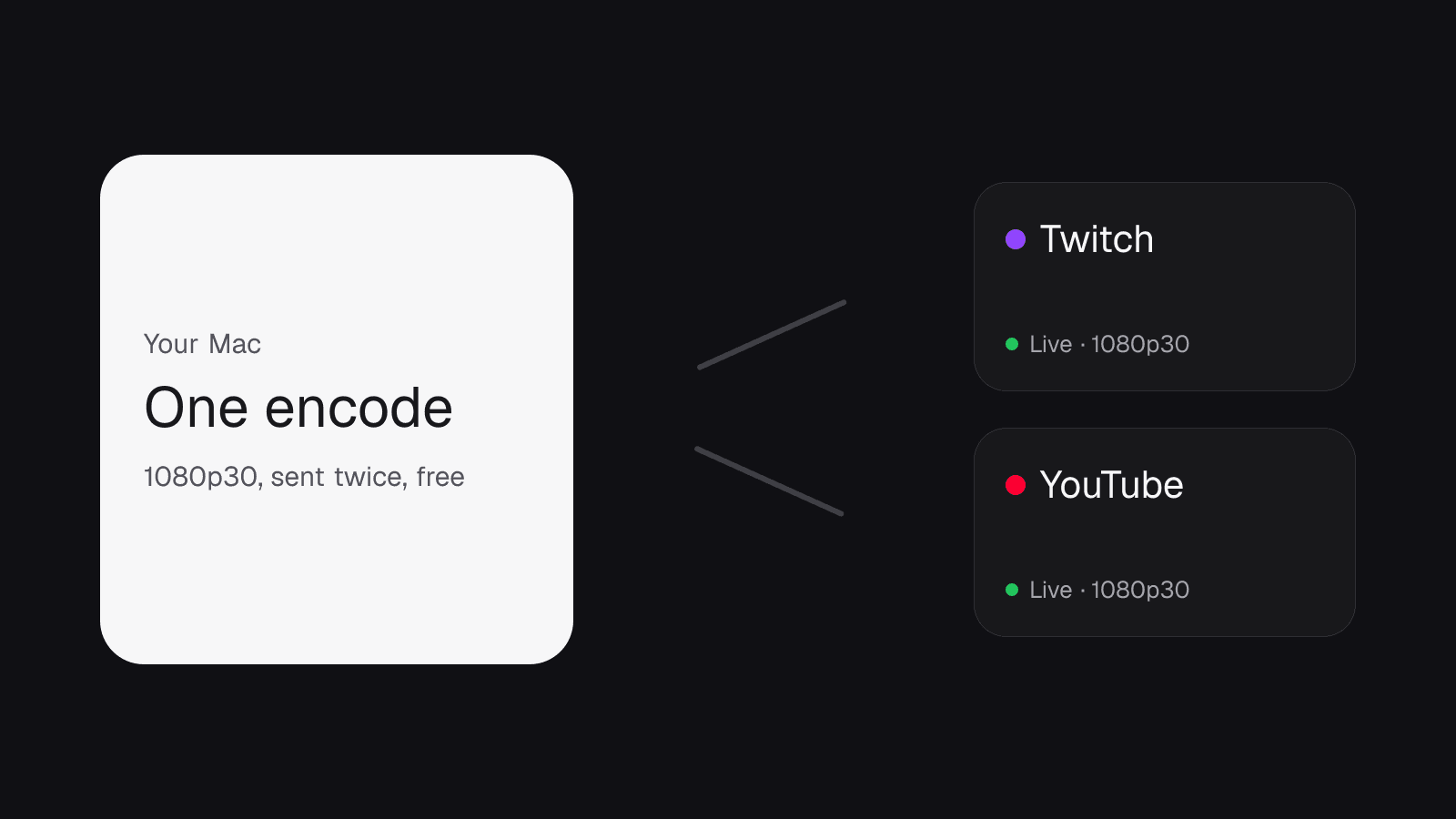
Twitch and YouTube are the pair most creators want live at once. The usual advice is a Restream plan. You do not need one. A desktop encoder can send the same stream to both platforms directly, and on the Videorc macOS beta that is free.
This is the setup, start to finish, with the parts people get wrong.
TL;DR
- Two destinations is well inside Videorc’s free cap of five.
- Twitch connects with a login. YouTube needs a Server URL and stream key from YouTube Studio.
- One encode leaves your Mac at 1080p30. Both platforms get the same picture.
- Budget about 12 Mbps of steady upload for the pair.
- The full per-platform list lives in the multistream guide.
Why one encode, not two
Videorc encodes your scene once and copies the result to every destination card you turned on. The copies leave from your machine. Nothing is uploaded to a relay and re-sent.
That is the whole reason it is free. Cloud tools such as Restream charge per extra destination because each copy is their bandwidth. On your desktop the second copy costs you only upload speed.
Both platforms receive the identical 1080p30 stream. If you want different bitrates or layouts per platform, that is a different product. For a Twitch plus YouTube simulcast the shared encode is what you want.
What you need before you start
- A Mac on Apple Silicon running macOS 13 or later, with the Videorc macOS beta installed.
- A Twitch account that is allowed to stream. Twitch relaxed its exclusivity rules in 2023, so most accounts may simulcast; check the current Twitch simulcasting guidelines if you are a partner.
- A YouTube channel with live streaming enabled. YouTube needs a verified phone number and a 24-hour wait after enabling live for the first time.
- Upload speed. At the free 6000 kbps ceiling per destination, plan on about 12 Mbps of steady upload for the pair, with headroom on top. Wired beats Wi-Fi.
Step 1: connect Twitch
Open Livestream in Videorc, add a Twitch card, and choose Connect. A browser window asks Twitch for permission and comes back to the app. Videorc keeps the link, so next time the card is already live.
The Twitch card also unlocks chat in the Comments window. You will see Twitch messages beside your preview while both feeds run.
Step 2: paste the YouTube stream key
YouTube account connect is paused while Google reviews the app, so this platform uses a key for now.
- Open YouTube Studio and choose Go live, then Stream.
- Copy the Stream URL and the Stream key from the Stream settings panel.
- In Videorc, add a YouTube card and paste both fields.
Videorc keeps a backup of the previous key when you replace one, so a wrong paste never wipes a working key.
Do not paste the same key into two cards. Two cards with one key means one platform gets nothing, and Videorc stops the start with a duplicate key warning.
Step 3: pick a scene and check the preview
Choose the scene you want on both platforms. The native preview shows the exact frame that both destinations receive. Confirm the microphone meter moves and the camera is the one you meant.
Keep the layout horizontal for this pair. Twitch and YouTube standard live are 16:9 surfaces.
Step 4: go live once
Press Go Live. Videorc starts both destinations from the same session and shows per-destination health in the session panel. If one platform drops, the other keeps running, and the panel names which one failed.
YouTube takes a few seconds longer than Twitch to show the stream as live. That is YouTube’s ingest, not the app.
Step 5: end cleanly
Stop in Videorc ends both destinations. YouTube can take a moment to close the broadcast on its side. If you also recorded, the local file is already in the library.
What is different on each platform
| Twitch | YouTube | |
|---|---|---|
| How it connects | Login inside Videorc | Server URL plus stream key |
| Where chat shows | Comments window, live | Not yet in the Comments window |
| Time to appear live | Seconds | A few seconds longer |
| Free quality ceiling | 1080p30, 6000 kbps | 1080p30, 6000 kbps |
Common problems
- Twitch shows live, YouTube does not. Check that the YouTube stream in Studio is set to public or unlisted and that the key is the current one. Studio can rotate keys.
- Both show live, YouTube is choppy. Upload speed, almost always. Two copies of 6000 kbps need a steady 12 Mbps plus headroom.
- The duplicate key warning fires. Two cards carry the same key. Fix one card.
- You want vertical on one and horizontal on the other. That is the vertical simulcast feature, not this setup. Read the multistream guide for how orientations count against the cap.
Windows
The steps above are macOS beta steps. A Windows build only supports streaming once its release notes or the download card list it. Do not assume the pair works on Windows from this page.
FAQ
Is streaming to Twitch and YouTube at the same time free?
On the Videorc macOS beta, yes. Two destinations sit well inside the free cap of five, and every plan streams multistreams at 1080p30.
Do I need Restream to simulcast Twitch and YouTube?
No. A desktop encoder can send the same stream to both platforms directly. Restream is a relay in the middle; Videorc fans out on your machine.
Why is YouTube a stream key while Twitch is a login?
Twitch connects with OAuth inside Videorc. YouTube account connect is paused while Google reviews the app, so paste the Server URL and stream key from YouTube Studio for now.
Does Twitch allow simulcasting?
Twitch relaxed its exclusivity rules in 2023 so most streamers may simulcast to other services. Check the current Twitch simulcasting guidelines for your account type before relying on it.
What upload speed do I need for both?
Budget the free 6000 kbps ceiling per destination, so about 12 Mbps of steady upload for two, with headroom on top. A wired connection beats Wi-Fi.