
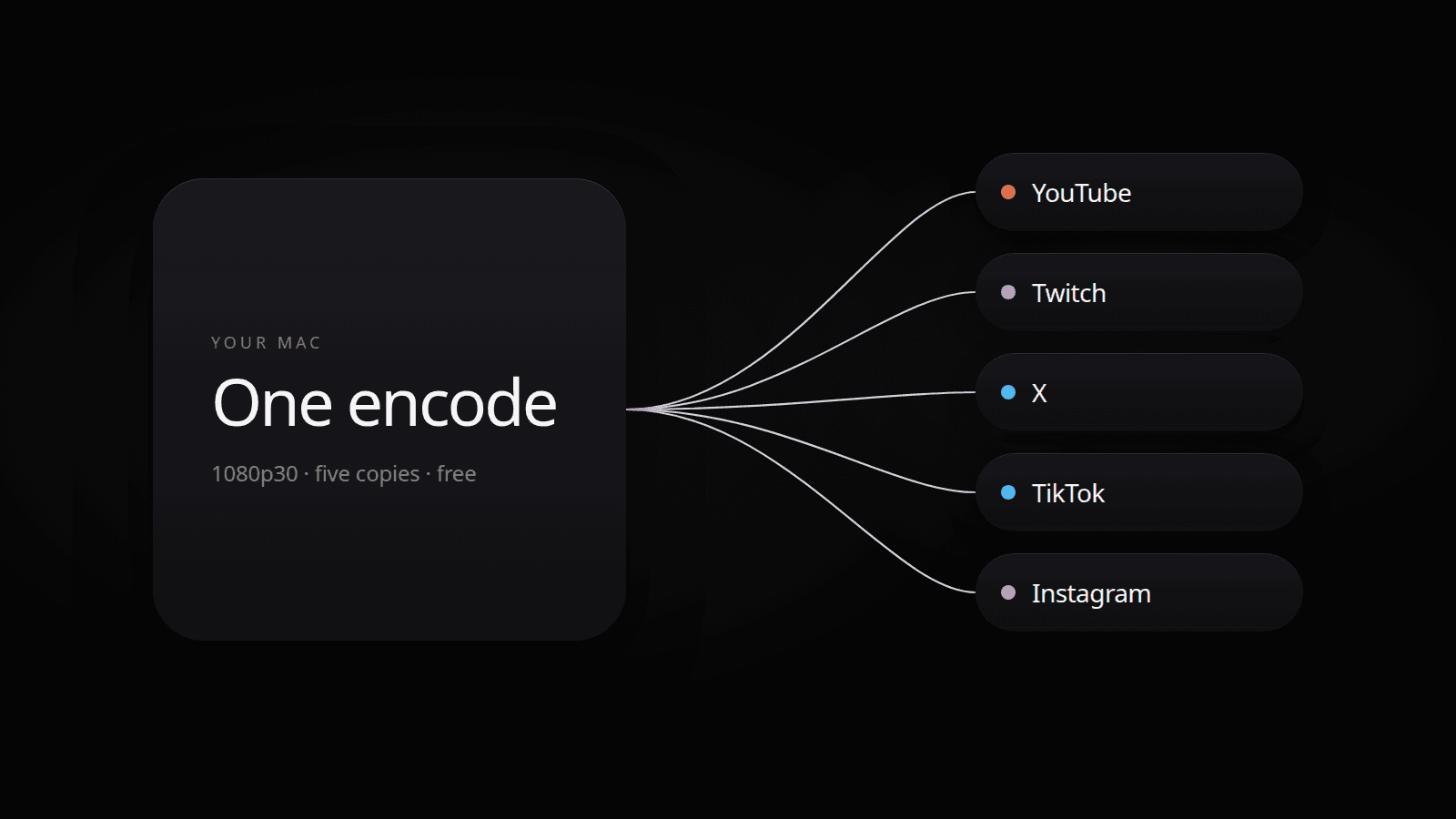
Paid Restream and StreamYard plans are the usual answer to "how do I go live on more than one platform." You do not need one. A desktop encoder can copy one stream to several destinations on your own machine, and with Videorc that setup is free. Videorc is available on Mac and Windows.
This is the general how-to: why free works, what you need, how to connect destinations, and how to go live. The per-platform key list lives in the multistream guide. The free-cap map lives in Free Multistream Compared.
TL;DR
- Videorc is an open-source screen recorder and multistream studio for Mac and Windows.
- Free means local recording plus multistream up to 5 destinations at 1080p30 where the current build supports it. Fan-out happens on your computer.
- Premium is not more destinations. Premium is a higher single-stream quality ceiling, live captions, and AI publish tools.
- Destinations need credentials. TikTok often has no RTMP key.
- Budget about 6 Mbps of upload per destination, plus headroom. Five destinations want about 30 Mbps of steady upload.
- Available on Mac and Windows. Check the download page for the current build on your OS.
Why free works on your machine
Cloud tools such as Restream and StreamYard take one inbound stream and copy it in their data center. Each extra copy is their bandwidth, so free plans stop at one or two destinations.
A desktop encoder encodes your scene once and copies the result locally. The copies leave from your NIC. The vendor is not billed per platform. That is the whole reason a five-destination free cap can exist.
Videorc does this as a first-class destination list. You still pay in upload speed and CPU. Cloud relays sell the fact that you upload once.
Every destination receives the identical 1080p30 stream. If you want different bitrates or layouts per platform, that is a different product.
What you need before you start
- Videorc installed on Mac or Windows. Check the download page for the current build on your OS.
- Accounts on the platforms you want live, and the ingest credentials those platforms actually issue.
- Upload speed. At the free 6000 kbps ceiling per destination, plan on about 6 Mbps of steady upload per card, plus headroom. Five cards want about 30 Mbps. Wired beats Wi-Fi.
- A scene you have already previewed: camera, mic, and screen if you use them.
You do not need a Restream or StreamYard subscription for the copies themselves.
Connect destinations
Open Livestream in Videorc and add one card per platform.
- Twitch and X connect with a login inside the app.
- YouTube, Instagram, and custom RTMP take a Server URL and stream key from that platform. YouTube account connect is paused while Google reviews the app, so paste the key from YouTube Studio for now.
- TikTok also wants a Server URL and stream key from LIVE Producer. LIVE Studio approval is not a key. Many accounts never get public RTMP. Leave TikTok off until Producer shows both fields.
Videorc keeps a backup of the previous key when you replace one. Do not paste the same key into two cards.
Turn on only the cards you will use this session. The free cap of five is simultaneous destinations, not accounts you have saved.
Go live
Pick the scene. Confirm the native preview and the microphone meter. Keep the layout horizontal unless you are using the vertical simulcast path described in the multistream guide.
Press Go Live. Videorc starts every enabled card from the same session and shows per-destination health. If one platform drops, the others keep running.
Stop in Videorc ends every destination. If you also recorded, the local file is already in the library.
Checklist
- Videorc installed and signed in, with screen and microphone access granted.
- Each destination card has a current key or a completed login.
- TikTok is off unless LIVE Producer showed Server URL and stream key.
- Upload speed covers 6000 kbps times the number of cards, plus headroom.
- Preview looks right. Meter moves.
- Go Live once. Watch the session panel. End from Videorc.
Common problems
- One platform is live, another is not. Check that card's key or login, and that the platform side is set to public or unlisted if it has that switch.
- Everything is choppy. Upload speed, almost always. Drop a destination or lower scene load.
- The duplicate key warning fires. Two cards carry the same key. Fix one card.
- TikTok never shows a key. That is TikTok, not the app. Stream the other destinations.
Windows
Videorc is available on Mac and Windows. The steps above are the same on both. Mac is the established beta; Windows builds are on the download page. Check that page for what the current build on your OS supports.
FAQ
Can I multistream for free in 2026?
Yes. Videorc is available on Mac and Windows. Local recording and multistream up to five destinations at 1080p30 are free where the current build supports it. Fan-out stays on your machine.
Do I need Restream or StreamYard to go live on more than one platform?
No. Those products copy your stream in the cloud and charge when you add destinations. A desktop encoder copies the stream on your computer.
What does Premium add if five destinations are already free?
A higher single-stream quality ceiling (4K or 1080p60 where the platform allows it), live captions, and AI publish tools. Not more destinations. Multistreams stay at 1080p30 on every plan.
What upload speed do I need?
Budget the free 6000 kbps ceiling per destination. Two destinations want about 12 Mbps of steady upload. Five want about 30 Mbps, with headroom on top. A wired connection beats Wi-Fi.
Why does TikTok often fail to connect?
TikTok only issues a Server URL and stream key through LIVE Producer. LIVE Studio approval is a different door. If Producer redirects away, leave TikTok off and stream everywhere else.
Does this work on Windows today?
Yes. Videorc is available on Mac and Windows. Mac is the established beta; Windows builds are on the download page. Check that page for the current build on your OS.