A screen recorder for the file. A browser studio for the live. Two start buttons, two clocks, and a take you cannot get back if one of them is late.
Screen-recorder searchers land here for a reason. The file is the job they came to do. The live destinations are the job they add the next week. Videorc is a local-first desktop studio: recordings stay on your computer, and the same session can send that encode out to live destinations. Videorc is available on Mac and Windows.
TL;DR
- Two apps mean two start times. The take you wanted is the one where both were already running.
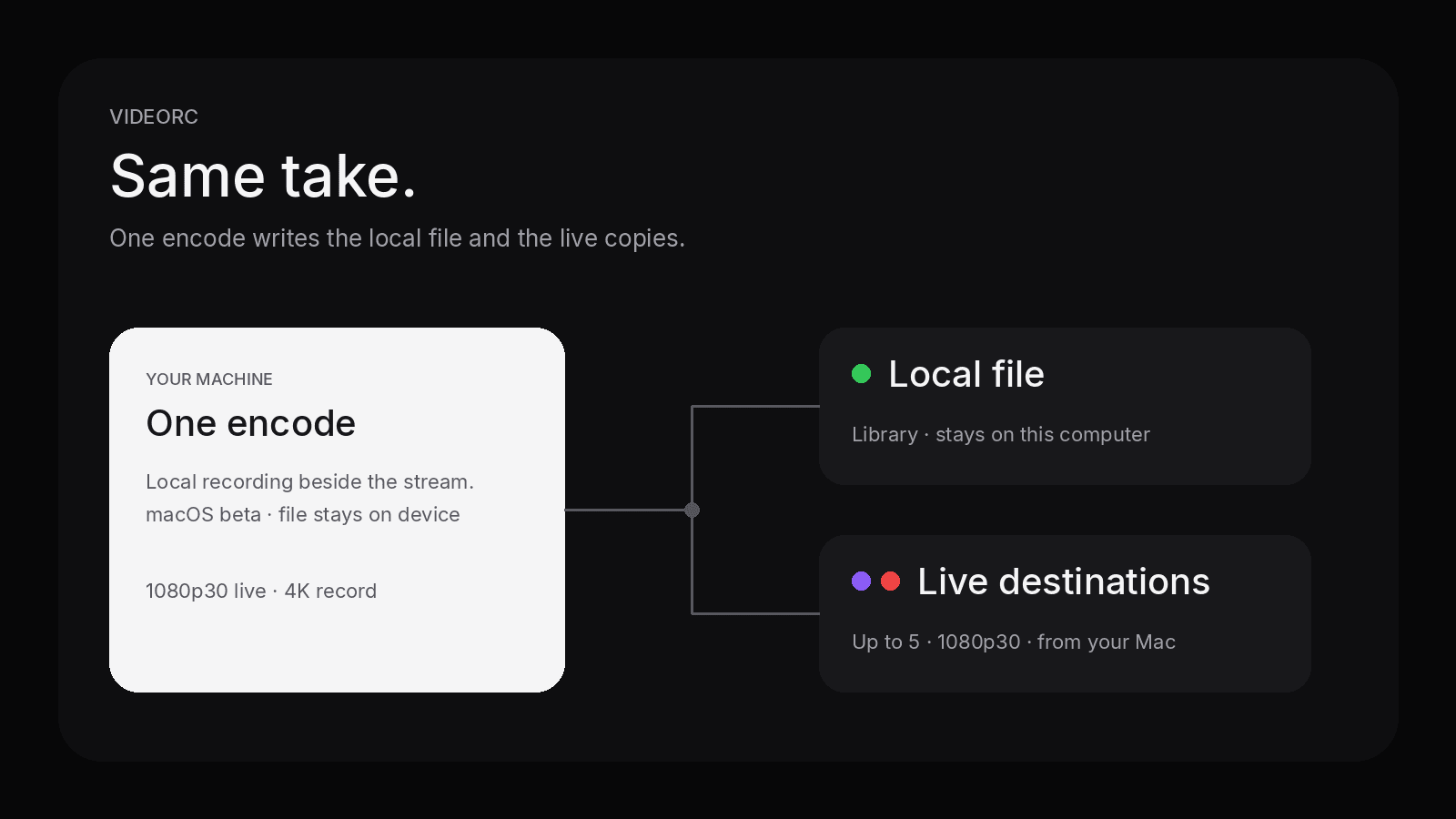
- Videorc encodes the scene once. Local recording writes the file. Live cards copy that encode to destinations.
- Recordings stay on your device. The file is in the library when you stop.
- Multistream is free up to five destinations at 1080p30 where the current build supports it.
- Premium is 4K streaming, captions, and AI publish. Not more destinations.
- Destination setup lives in the multistream guide.
Why the split loses the take
The usual stack is a dedicated recorder plus a browser studio. You arm the recorder. You arm the studio. You hope both clocks start on the same breath.
They do not. The recorder misses the cold open. The studio drops the last answer. You have a local file of one thing and a VOD of another. The take you would publish is gone.
That is not a talent problem. It is two products that do not share a start button.
The local file and the live copies are the same picture. If you want a different bitrate or layout per destination, that is a different product. For a take you can keep and a stream you can send, the shared encode is the point.
One encode, not two clocks
Videorc encodes your scene once. If local recording is on, that encode writes a file on your computer. If destination cards are on, the same encode is copied to those endpoints from your machine. Nothing is uploaded to a relay and re-recorded.
The file is not a download from the live platforms later. It is already in the library when you stop.
Local recording includes 4K capture, with no watermark and no time-limited trial, where the current build supports it. Live copies on a multistream stay at 1080p30, on every plan, up to five destinations.
What the same session does
This is a workflow, not a per-platform walkthrough.
- Build the scene you want on the file and on the live outputs. Horizontal 16:9 is the default for most destinations.
- Confirm the native preview. Mic meter moving. Camera the one you meant.
- Add destination cards only for places that already handed you ingest details. A missing key is a missing destination, not a failed record.
- Keep local recording on if you want the file. The stream does not mint a local take by itself if recording is off.
- Press Go Live once. Destinations start together. The record runs beside them.
- Stop in Videorc. Live cards end. The file is already local.
Upload budget belongs to the live copies, not the file. Five destinations at the free 6000 kbps ceiling want about 30 Mbps of steady upload with headroom. The local write does not spend that uplink.
Per-platform connect steps, keys, and the free versus Premium table live in the multistream guide.
Checklist before you start
- Scene and preview match the take you want to keep.
- Microphone meter moves. Camera is correct.
- Local recording is on if you need the file.
- Each live card has a current key or login. Skip cards you cannot fill.
- Upload headroom matches the number of destinations you turned on.
- Videorc is installed. Check the download page for the current build on your OS.
If a destination is missing, record anyway and add that platform later. Do not hold the take for a key a platform never showed you.
What stays on your machine
Videorc is local-first. Recordings stay on your computer in the library. Streaming copies leave your network toward the platforms you chose. Recording itself does not upload the take to a cloud store.
Cloud AI publish is a different, explicit path, and it is Premium. Pressing record does not send the file anywhere.
What this is not
This is not a claim that every screen recorder can also go live, or that every live studio writes a useful local file. It is the reason to stop running two start buttons for one take.
Use a dedicated recorder if you never go live. Use a browser studio if the studio is the product. Use Videorc if the file and the live copies should be the same session.
Videorc is available on Mac and Windows. Mac is the established beta; Windows builds are on the download page. Check that page for what the current build on your OS supports.
FAQ
Can I record and go live in the same session?
Yes. Videorc is available on Mac and Windows. Local recording runs beside the stream. The file lands in your library when you stop.
Where does the recording live?
On your computer, in the Videorc library. Recordings stay on the device. Going live does not move the file to a cloud store.
Do I still need a separate screen recorder?
Not for this workflow. Record without destinations if you only want the file. Turn on destination cards if you also want to go live.
Does Premium add more destinations?
No. It is 4K streaming for a single stream, live captions, and AI publish. Not more destinations. Multistreams stay at 1080p30 on every plan.
Does this work on Windows today?
Yes. Videorc is available on Mac and Windows. Mac is the established beta; Windows builds are on the download page. Check that page for the current build on your OS.